Accessibility and privacy
What Is an Accessibility Overlay?
An accessibility overlay is a third-party script or widget added to a website that shows a toolbar of display settings or applies automated fixes, often marketed as making the site accessible or legally compliant without changing its underlying code.
What an accessibility overlay means in plain English
An overlay is usually one line of JavaScript pasted into a site. It loads a floating icon that opens a menu of options such as larger text, higher contrast or a readable font, and some products also run scripts that try to add missing alt text, labels or keyboard support as each page loads. The original code underneath stays the same, so the overlay sits on top rather than repairing anything.
Overlays are different from the assistive tools disabled visitors already use. Screen readers, browser zoom and operating system display settings work on every site, set up the way each person prefers. An overlay toolbar repeats some of those settings for one site only, and its automated guesses can miss or misread what the page actually needs.
Why accessibility overlays matter for a business
The main risk is false confidence. In January 2025 the US Federal Trade Commission alleged that accessiBe's claims its AI widget could make any website WCAG compliant were false, misleading or unsubstantiated. The final order, approved in April 2025, required a $1 million payment and bars such claims without evidence. A business relying on an overlay may still have the barriers that lead to complaints.
An accessibility overlay example
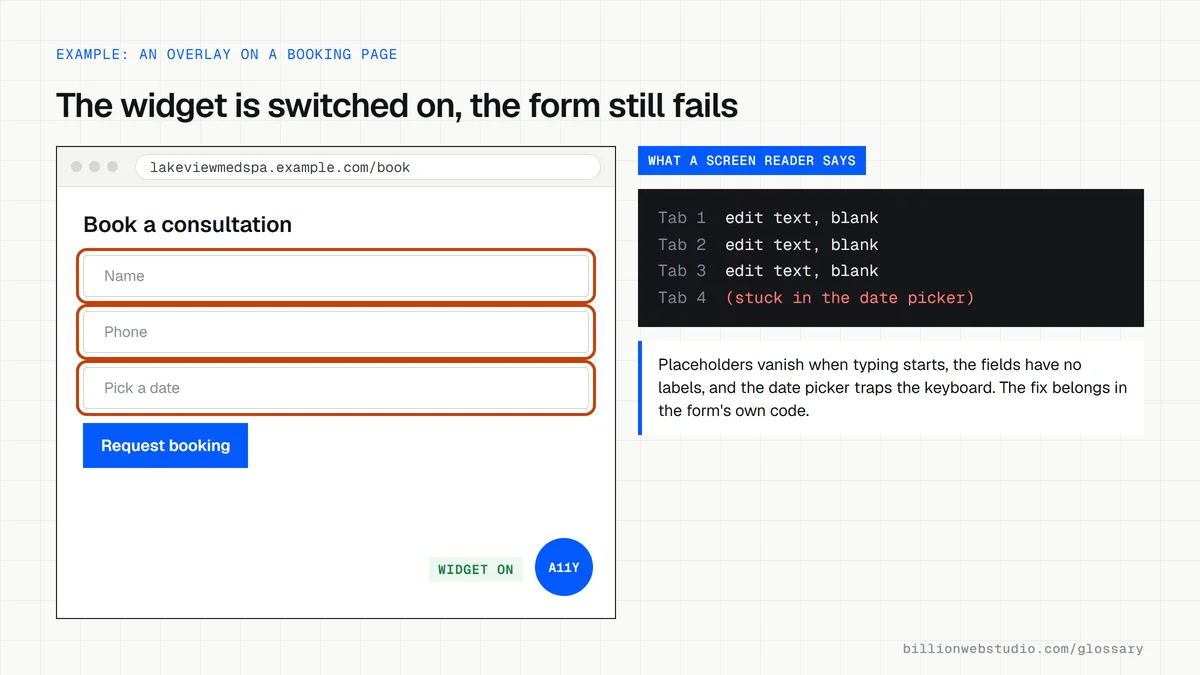
A med spa installs an overlay after receiving a demand letter, and the widget icon appears on every page. A screen reader test of the booking form still finds unlabeled fields and a date picker that traps keyboard focus, because the automated fixes missed them. The spa removes the widget, repairs the form in its code and confirms the result with manual testing.
Common accessibility overlay mistakes
- Treating a widget icon or compliance badge as proof that the site meets WCAG.
- Skipping keyboard and screen reader testing because the vendor dashboard reports no errors.
- Believing claims of fully automated compliance without asking for evidence, which the FTC's business guidance warns against.
- Leaving real fixes, such as missing alt text, form labels and weak contrast, unfixed in the site's code.
- Assuming the overlay vendor carries the legal risk when the site and its content still belong to you.
What overlay toolbars offer and what visitors already use
| Toolbar option | What visitors already use | What your site must do for it to work |
|---|---|---|
| Bigger text | Browser zoom and system text size settings | Stay readable without overlap at 200 percent zoom (WCAG 1.4.4) |
| Higher contrast | Windows contrast themes and macOS Increase contrast | Meet contrast ratios by default and stay usable in forced colors mode |
| Read aloud | Screen readers such as NVDA, JAWS, VoiceOver and TalkBack | Use real labels, alt text and headings in the HTML |
| Stop animations | The Reduce motion setting in the operating system | Respect the prefers-reduced-motion media query in CSS |
| Keyboard mode | Tab, Shift+Tab, Enter and arrow keys | Show visible focus and never trap the keyboard (WCAG 2.1.2) |
How to test a site that runs an accessibility overlay
- Look for a floating accessibility icon, usually in a bottom corner, and note the vendor name shown in its menu.
- Without opening the widget, press Tab from the top of the page through the menu, your contact or booking form and checkout, and note where focus disappears or gets stuck.
- Paste the page address into WAVE and review the Errors and Contrast Errors counts in the summary.
- Turn on a screen reader, such as VoiceOver (Cmd+F5 on a Mac) or the free NVDA on Windows, and listen to each form field being read.
- Ask your developer to repeat these checks on a staging copy with the overlay script removed, so you see what the code itself delivers.
What good looks like: Menus, forms and checkout work by keyboard and screen reader with the overlay turned off. If they only work with it on, or not at all, the barriers are still in the code.
Free tool: WAVE Web Accessibility Evaluation Tool
Questions to ask your web developer
“If we remove the overlay, what accessibility issues would remain on our site?”
A good answer: A page by page list from manual testing against WCAG 2.2 Level AA, naming each issue, its success criterion and the code fix.
“Do you rely on any tool to make the site compliant automatically?”
A good answer: No. Automated tools catch only part of the problems, so testing includes keyboard and screen reader checks, and the report lists which pages were tested.
Accessibility overlay: common questions
Do accessibility overlays make a website ADA compliant?
No tool can promise that by itself. Accessibility depends on the site's code, content and design meeting a standard such as WCAG, which takes human review. The FTC's 2025 order against one overlay vendor bars it from claiming its automated product makes any website WCAG compliant without evidence. Fix barriers in the code and test them.
What should I use instead of an accessibility overlay?
Fix the site itself. Run an automated checker to catch obvious issues, then test key pages and forms with only a keyboard and with a screen reader. Correct the code, content and design, and keep a record of what changed. A written audit against WCAG 2.2 Level AA gives you a clear list to work through.
Sources
- FTC: Order requires online marketer to pay $1 million for deceptive claims that its AI product could make websites compliant (January 2025)
- FTC: FTC approves final order requiring accessiBe to pay $1 million (April 2025)
- FTC Business Blog: A million-dollar blunder, lessons from the accessiBe settlement
- W3C: Web Content Accessibility Guidelines (WCAG) 2.2
- MDN: prefers-reduced-motion
- WebAIM: WAVE Web Accessibility Evaluation Tool
Want a website that gets this right?
Every Billion Web Studio build includes technical SEO, schema and speed work as standard, with a fixed quote within 1 business day.