Building and hosting
What Is a Plugin?
A plugin is an add-on package of code that gives an existing platform, such as WordPress or a web browser, a new feature without changing the platform's own core files. Contact forms, SEO tools and booking calendars are common website plugins.
What a plugin means in plain English
Think of your website platform as a phone and each plugin as an app you add to it. The platform handles the basics, such as pages, users and the admin screen, while each plugin adds one extra job: a contact form, a cookie banner, an online store or automatic backups. You install it, switch it on and adjust its settings.
WordPress's developer handbook explains why plugins exist: they let you extend what WordPress does without editing its core files, which are replaced every time the platform updates. Shopify calls the same idea apps, and web browsers call it extensions, but the principle is identical.
Why plugins matter for a business website
Plugins are usually the cheapest way to add a feature. A ready-made form or booking plugin can cost little or nothing compared with paying a developer to build the same thing from scratch. The trade-off is that every plugin is code written by someone else, running on your site, on its own update schedule.
Each plugin can load extra scripts and styles, sometimes on every page, which slows loading and can drag down your Core Web Vitals. A plugin that its author stops maintaining can also leave a security hole open, so the number and quality of your plugins directly affect speed, safety and upkeep cost.
A plugin example
A dental practice on WordPress wants patients to request appointments online. Instead of commissioning custom code, the developer installs a booking plugin, connects it to the practice calendar and email, and styles the form to match the site. Patients can now ask for a slot at midnight, and the front desk sees every request the next morning.
Common plugin mistakes
- Installing a new plugin for a job that a theme setting or an existing plugin already handles.
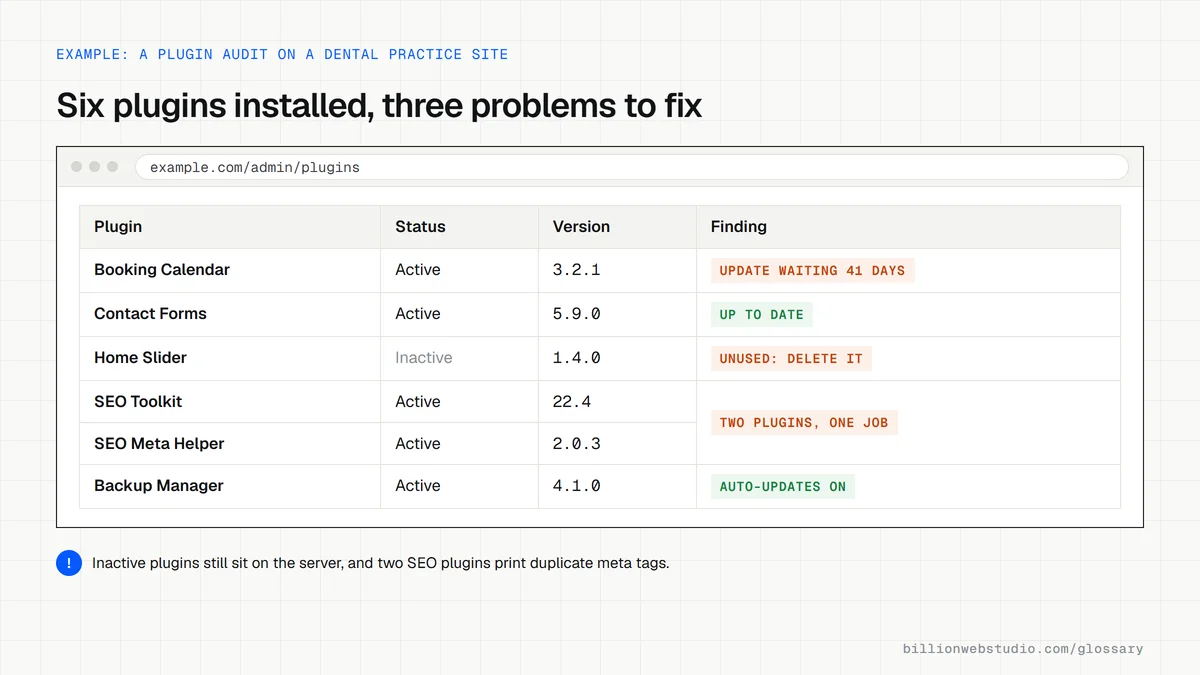
- Leaving deactivated plugins installed, where their outdated code can still be a target.
- Choosing plugins that have not been updated recently or are not tested with your current platform version.
- Running two plugins that do the same job, such as two SEO plugins that both print meta tags.
- Updating plugins straight on the live site without a backup or a staging copy to test first.
How to judge a WordPress plugin before you install it
| Check | Where to find it | Healthy sign | Warning sign |
|---|---|---|---|
| Last updated | Plugin page on WordPress.org, right-hand column | Recent updates and a visible changelog | No release for a year or more |
| Tested up to | Same column | Matches the current major WordPress version | Banner about not being tested with the latest 3 major releases |
| Active installations | Same column | An established user base | Very few installs and no reviews |
| Support forum | Support tab on the plugin page | Recent threads answered and marked resolved | Unanswered reports of errors or security issues |
| Page weight | Chrome DevTools Network tab, after activating it on staging | Loads scripts only on pages that use it | Adds scripts and styles to every page |
How to audit the plugins on your WordPress site
- Log in to WordPress admin and open Plugins > Installed Plugins. Note the totals shown next to All, Active and Inactive at the top of the list.
- Click the Update Available and Auto-updates Disabled filters, where shown, to see which plugins are behind and which nobody updates automatically.
- For each plugin, open its page on WordPress.org and read Last updated and Tested up to in the right-hand column. A banner saying it has not been tested with the latest 3 major releases of WordPress is a warning sign.
- Open Tools > Site Health. The Status tab warns when plugins are waiting to be updated, and the Info tab lists active and inactive plugins with their versions and auto-update setting.
- Take a backup, then delete plugins you no longer use instead of leaving them deactivated.
What good looks like: Site Health shows no plugin warnings, nothing sits inactive, and every remaining plugin is tested up to the current major WordPress release and does a job no other plugin on the site already does.
Free tool: WordPress Site Health screen
Questions to ask your web developer
“Which plugins will the site use, and what does each one do?”
A good answer: A written list with each plugin's purpose, whether it is free or paid, whose account holds the license and when it renews, so updates do not stop when a developer's license lapses.
“How are plugin updates tested before they reach the live site?”
A good answer: Updates run on a staging copy first, a backup is taken before the live update, and a named person checks forms, checkout and key pages afterwards, on a fixed schedule such as weekly.
“What happens if a plugin we rely on is abandoned or closed?”
A good answer: They watch for plugins that stop being updated or are closed on WordPress.org, and have a replacement ready, either another maintained plugin or a small piece of custom code, before it turns into a security problem.
Plugin: common questions
What is a plugin used for?
A plugin adds one specific feature to a platform that does not have it built in. On a website, that might be a contact form, an online booking calendar, an SEO tool, a security scanner, a store checkout or a backup routine, all added without editing the platform's own code.
Is a plugin the same as an extension?
They are the same idea under different names. WordPress uses the word plugin, Shopify says app, and Chrome or Firefox say extension. In every case it is optional code you add to an existing product to give it a new capability, and you can remove it later.
How many plugins are too many on WordPress?
There is no fixed safe number. A site with a handful of poorly coded plugins can be slower and less secure than one with many lightweight, well maintained ones. Judge each plugin by whether you truly need it, how recently it was updated and what it adds to page weight.
Sources
Want a website that gets this right?
Every Billion Web Studio build includes technical SEO, schema and speed work as standard, with a fixed quote within 1 business day.