Speed and Core Web Vitals
What Is AVIF?
AVIF stands for AV1 Image File Format.
AVIF (AV1 Image File Format) is a modern, royalty-free image format from the Alliance for Open Media that stores photos in much smaller files than JPEG at similar visual quality, and supports transparency, animation and HDR color.
What AVIF means in plain English
AVIF takes the compression from AV1, a video codec designed for streaming over the internet, and applies it to still images. MDN describes the format as AV1 data stored inside an HEIF container. Files use the .avif extension and the image/avif media type. The Alliance for Open Media publishes the specification, with version 1.2.0 finalized in October 2025.
Like WebP, AVIF can be lossy or lossless, and it handles transparent backgrounds and animation. It also supports high dynamic range and wide color gamut, so bright highlights and deep shadows in photos can be stored more faithfully than in JPEG.
Why AVIF matters for website speed
MDN states that lossy AVIF images are around 50% smaller than JPEG images at visually similar quality. Smaller hero and product photos download sooner on mobile networks, which helps Largest Contentful Paint and lowers bandwidth for both you and your visitors. Galleries and catalogs with many photos see the biggest gains.
Support is now broad: MDN lists Chrome from version 85, Firefox from 93, Safari from 16.1 and Edge from 121. WordPress has accepted AVIF uploads since version 6.5, provided the server's image library supports it. One drawback is that AVIF does not render progressively, so a file must fully download before it appears.
An AVIF example
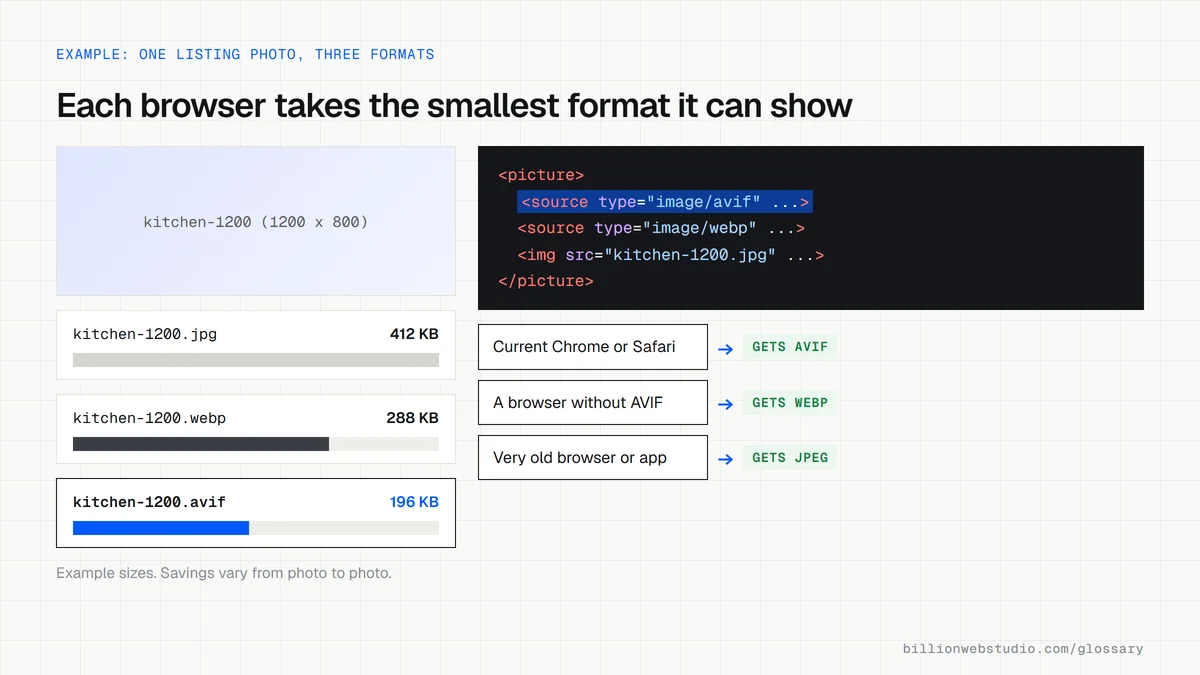
A real estate agency's listing pages each carry 25 large interior photos, and pages crawl on phones. The developer generates AVIF and WebP versions of every photo at the sizes actually displayed, then uses the picture element to offer AVIF first, WebP second and JPEG last. Each browser takes the first format it understands, so nobody sees a broken image.
Common AVIF mistakes
- Serving AVIF with no WebP or JPEG fallback for older browsers and email clients.
- Converting giant originals to AVIF without first resizing them to their display size.
- Pushing compression so far that skin tones and fine textures turn smeary.
- Using AVIF for logos and icons that would be crisper and lighter as SVG files.
- Uploading AVIF files to a host whose image library cannot process them, so thumbnails fail.
Copy this AVIF picture element with fallbacks
<!-- Browsers take the first source they support, top to bottom -->
<picture>
  <source srcset="/img/kitchen-1200.avif" type="image/avif">
  <source srcset="/img/kitchen-1200.webp" type="image/webp">
  <img src="/img/kitchen-1200.jpg"
       alt="Open-plan kitchen with a white quartz island and pendant lights"
       width="1200" height="800" loading="lazy" decoding="async">
</picture>
<!-- Keep width, height and alt on the img tag: the sources share them -->
How to check whether your site serves AVIF images
- Open a photo-heavy page in Chrome, press F12 to open DevTools and select the Network panel.
- Click the Img filter, then reload the page with Ctrl+R (Cmd+R on a Mac).
- Read the Type column: avif means the browser received an AVIF file, while jpeg or png means no modern format was offered.
- Compare the Size column for the largest photos, and click one to see its file name and dimensions.
- Run the page through PageSpeed Insights and open the Improve image delivery insight, which lists images that could be smaller in a modern format or at a better size.
What good looks like: Large photos arrive as avif or webp, each at roughly the size it is displayed, and Improve image delivery shows little or no estimated saving.
Free tool: PageSpeed Insights
Questions to ask your web developer
“Do you generate AVIF and WebP automatically when we upload a photo, or by hand?”
A good answer: Automatically, through the CMS, an image CDN or the build step, at several display sizes, so staff can upload a normal JPEG and still get modern formats.
“What fallback do older browsers and email newsletters get?”
A good answer: A WebP or JPEG version through the picture element on the site, and plain JPEG or PNG in emails, because many email clients do not display AVIF.
“What quality setting do you use, and how do you check it on skin tones and fine detail?”
A good answer: A tested setting per image type, compared side by side with the original on a few real photos, rather than one aggressive setting for every image.
AVIF: common questions
Is AVIF better than WebP?
AVIF usually compresses further. MDN cites a comparison in which AVIF achieved a median of 50% compression against WebP's 30% on the same JPEG set. WebP still has a longer support history and renders progressively, so many sites serve AVIF first with WebP as the fallback.
Which browsers support AVIF images?
According to MDN, AVIF works in Chrome 85 and later, Firefox 93 and later, Safari 16.1 and later, Edge 121 and later, and Opera 71 and later. Firefox added animated AVIF in version 113. Older browsers need a fallback format supplied through the picture element.
Can I use AVIF images in WordPress?
Yes. WordPress 6.5 added AVIF support, so you can upload AVIF files to the media library like JPEG or PNG, as long as your server's image library can handle them. Site Health under Tools shows whether your hosting supports the format.
Sources
Want a website that gets this right?
Every Billion Web Studio build includes technical SEO, schema and speed work as standard, with a fixed quote within 1 business day.